The old way: a laptop, a cable, and PYLON Console
If you own a Pylontech battery — a US3000, a US5000, a UP2500, a stack of them — you already know the ritual. Dig out the RS232-to-USB cable. Find the laptop. Launch PYLON Console or BatteryView. Wait for it to connect. Squint at a table of numbers. Close the laptop. Repeat next time you're curious, or next time something feels off.
That workflow is fine the first time. It's fine the tenth time, if the battery lives next to your desk. It stops being fine the moment the battery bank is in a garage, a basement, a camper van, or a cabin you visit twice a month — because now "checking the battery" means a physical trip, not a glance at your phone.
Pylontech monitoring, done properly, removes that trip entirely. This guide is about what that actually looks like in practice — not the marketing version, the working version — and how to get there without turning it into a weekend electronics project.
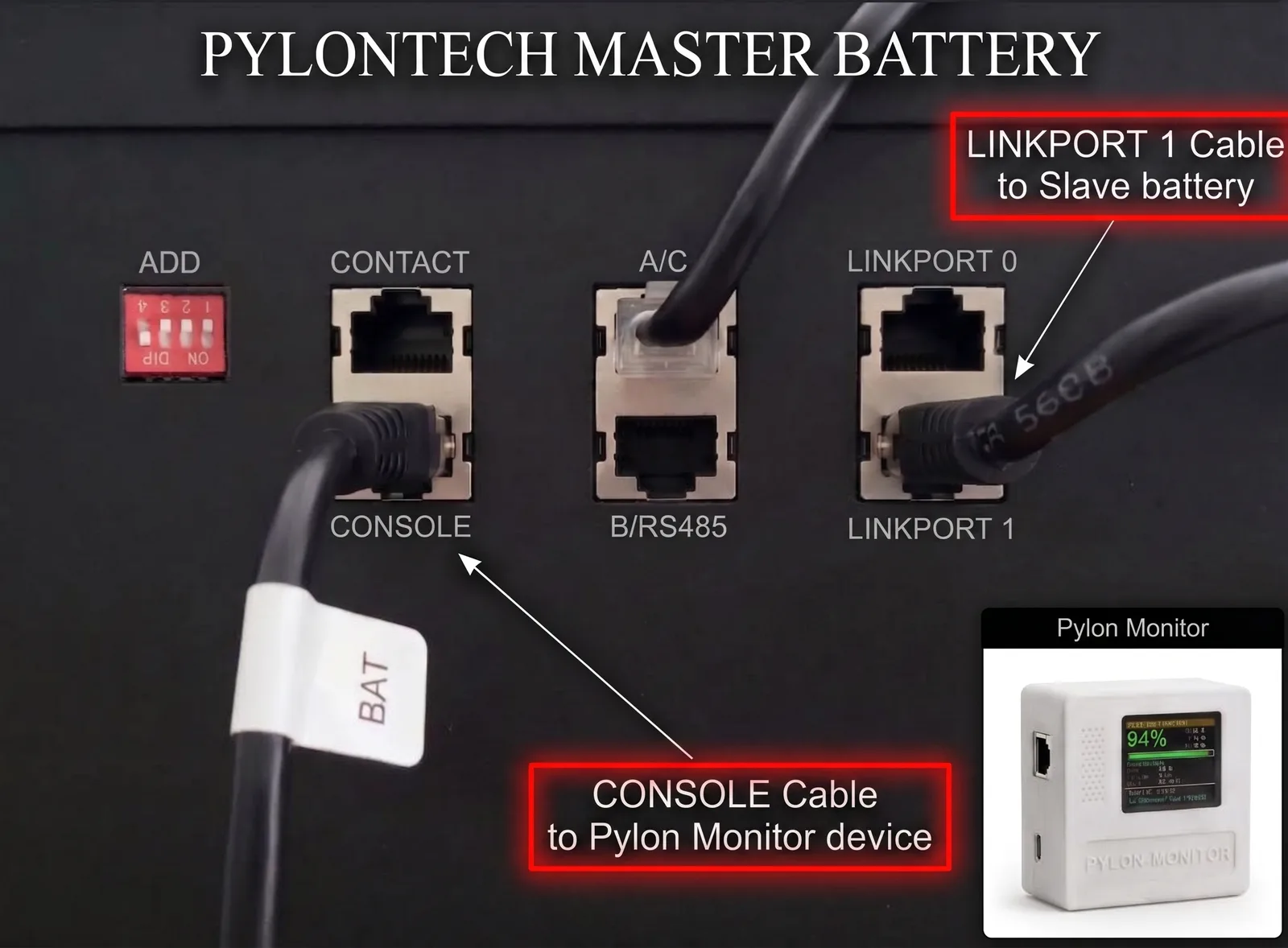
The cable that chains your master battery to the first slave must leave LINK PORT 1 on the master — never LINK PORT 0. It plugs into LINK PORT 0 on the slave, and every further battery repeats the same 1 → 0 pattern. Wired the other way round the master never sees the rest of the stack, so Pylon-Monitor reports a single battery no matter how many you own.
What "Pylontech monitoring" should actually mean
Strip away the jargon and Pylontech monitoring is really just one question, asked continuously instead of occasionally: what is my battery doing right now? State of charge, state of health, voltage, current, power flow, temperature, alarm status. The battery's own BMS already knows all of this — it's sitting right there on the Console (RS-232) port, the same port PYLON Console talks to. The only thing missing is a permanent, always-on way to ask.
That's the real difference between "I can technically read my battery's data" and Pylontech Monitoring as an ongoing practice: whether checking it costs you two minutes and a cable, or costs you nothing because it's already on a screen, a dashboard, or a home-automation card you glance at anyway.
The numbers actually worth watching
Not every field the battery reports deserves your attention every day. In practice, five numbers cover 95% of what matters day to day:
- SOC (State of Charge) — how full the battery is right now, in %.
- SOH (State of Health) — how much capacity remains compared to new, in %.
- Voltage & current — whether it's charging, discharging, and how hard.
- Cell imbalance — the spread between the highest and lowest cell voltage, an early-warning number most people never look at.
- Temperature — base and MOSFET, mostly relevant as an alarm trigger, not something to stare at.
We go much deeper on what these numbers mean, what's normal, and what should worry you in Pylontech Diagnostics 101 — this guide stays focused on the monitoring side: getting the numbers to you in the first place.
Three ways people actually do Pylontech monitoring today
1. Manual, console-and-laptop. Zero cost beyond the RS232-USB cable most installers already have. Zero permanence — the moment you close the laptop, you're blind again. Fine for a one-time commissioning check, not a monitoring strategy.
2. Bundled inverter/BMS cloud apps. Some hybrid inverter ecosystems ship a monitoring app of their own. Useful if you're already deep in that ecosystem, but it typically talks to the inverter's own telemetry, not Pylontech's console protocol directly — so Pylontech-specific detail (per-cell voltages, exact SOH, alarm codes) is often missing or approximate. And it adds another cloud account, another app, another company with a copy of your data.
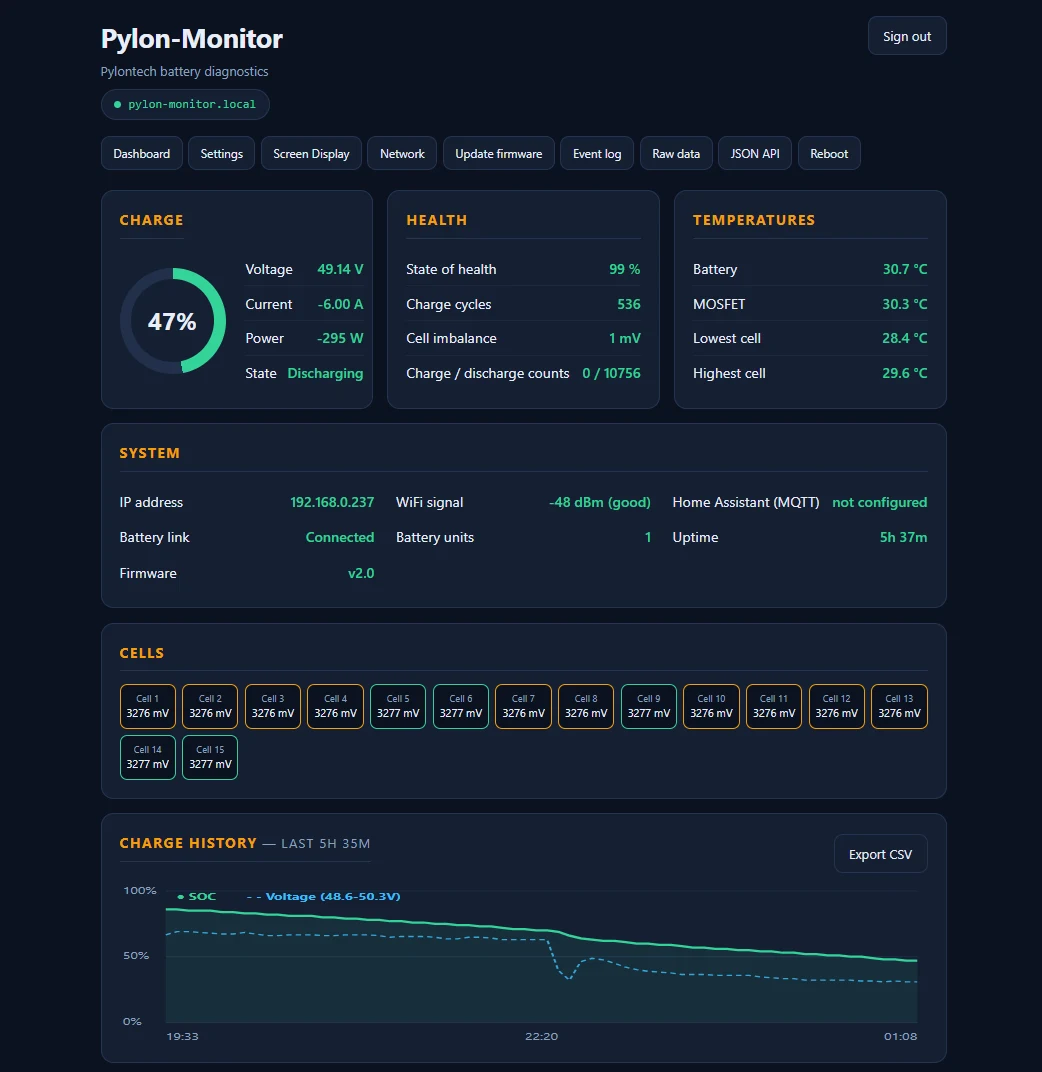
3. A dedicated local monitoring device. Something that reads the Console port directly, turns it into a small local web dashboard and a JSON API on your own network, and — critically — plugs straight into whatever you already use for home automation. No cloud requirement, no new account, no vendor lock-in. This is the category Pylon-Monitor sits in, and it's genuinely the least effort of the three once it's set up once: see the full feature list if you want the specifics.
Wireless, remote — without handing your data to a cloud
"Remote" and "cloud" get treated as synonyms, but they don't have to be. Monitoring Pylontech sans fil just means the connection between the device and your network is WiFi instead of a cable — it says nothing about where the data ends up. A local device that exposes a JSON API and an MQTT feed on your own LAN gives you every bit of the convenience (check from your phone, from another room, from your desk) with none of the trade-off (an outside company holding a permanent log of your battery's behaviour). If you also want access away from home, flip on the device's own optional public URL (Settings > Public JSON access) instead of setting up a VPN or reverse proxy yourself — same idea, without the extra infrastructure to maintain.
Tuya / SmartLife — an unofficial bridge via IFTTT, Make.com or Apilio
Tuya devices and the SmartLife app only ever report to Tuya's own cloud — there's no generic JSON endpoint on their side the way there is here, and no official Pylontech-to-Tuya integration exists. This device doesn't pretend to be one either. What it does provide is the missing piece for a no-code bridge: turn on Settings > Public JSON access > "Enable a real public URL" and pylon-monitor.com republishes your device's JSON at a stable HTTPS link, reachable from anywhere — no port forwarding, no VPN, nothing exposed on your own router.
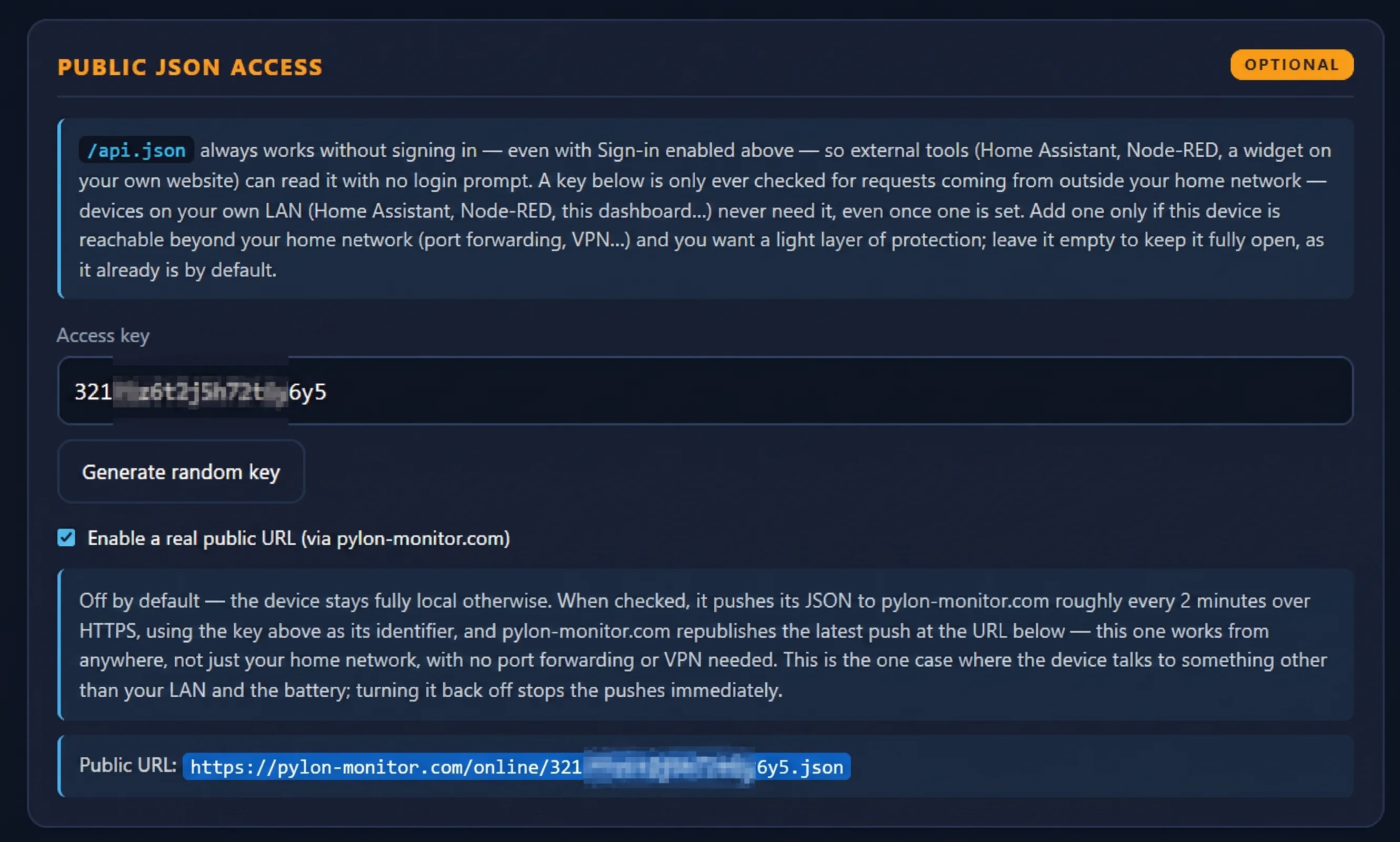
With that URL in hand, a free-tier no-code automation platform can poll it and push the values into a Tuya virtual device or a SmartLife-facing webhook:
- IFTTT — a Webhooks/JSON applet polling the URL on a schedule, feeding a SmartLife action.
- Make.com (formerly Integromat) — an HTTP module reading the URL, a JSON parser, then a Tuya/SmartLife module or a webhook back into Tuya's IoT Platform.
- Apilio — built specifically around Tuya/SmartLife automations, with its own HTTP-request trigger that can poll a URL like this one directly.
None of this is officially supported by Tuya or by Pylon-Monitor — it's a bridge you assemble yourself from existing free tools, not a certified integration. But if you want your battery's SOC or state on a SmartLife dashboard, or in an Alexa/Google routine that only understands Tuya devices, the public URL above is the one piece you'd otherwise be missing.
Where this actually matters
A few situations where the gap between "monitoring exists" and "monitoring is actually used" tends to show up:
- The off-grid cabin. You're not there most of the week. A battery that silently drops to 15% SOC on a cloudy stretch is a problem you want to know about on day one, not on arrival day.
- The camper van or boat. Storage lives somewhere awkward to reach. A phone-check before a trip beats crawling under a bunk with a laptop.
- The garage or plant-room bank. Nothing dramatic happens day to day — until a cell starts drifting, and the only way you'd know in time is if something was actually watching.
Getting there in under 2 minutes
Whichever route you pick, the setup shouldn't be the hard part. Pylon-Monitor's own version of this is deliberately boring: connect the Console cable, power the device, join its WiFi setup portal, pick your home network, done — see the quick start guide or the full installation walkthrough if you want every screen. From there, the two guides below cover what to do with the data once it's flowing: into Home Assistant specifically, or into whatever else you already run.
Frequently asked questions
- What does "Pylontech monitoring" actually mean?
- It means having continuous, always-available access to your Pylontech battery's state of charge, state of health, voltage, current and alarm status — instead of only being able to check them by plugging a laptop into the Console port and running vendor software each time.
- Can I monitor a Pylontech battery over WiFi without a laptop?
- Yes. A dedicated local monitoring device reads the battery's Console (RS-232) port directly and exposes the data over WiFi as a web dashboard and a JSON API on your local network — no laptop, no vendor software, no cloud account required.
- Does monitoring affect my Pylontech warranty?
- No, as long as the monitoring device only reads the Console port. A proper monitoring tool never sends control or charging commands to the battery, so it cannot affect the manufacturer's warranty.
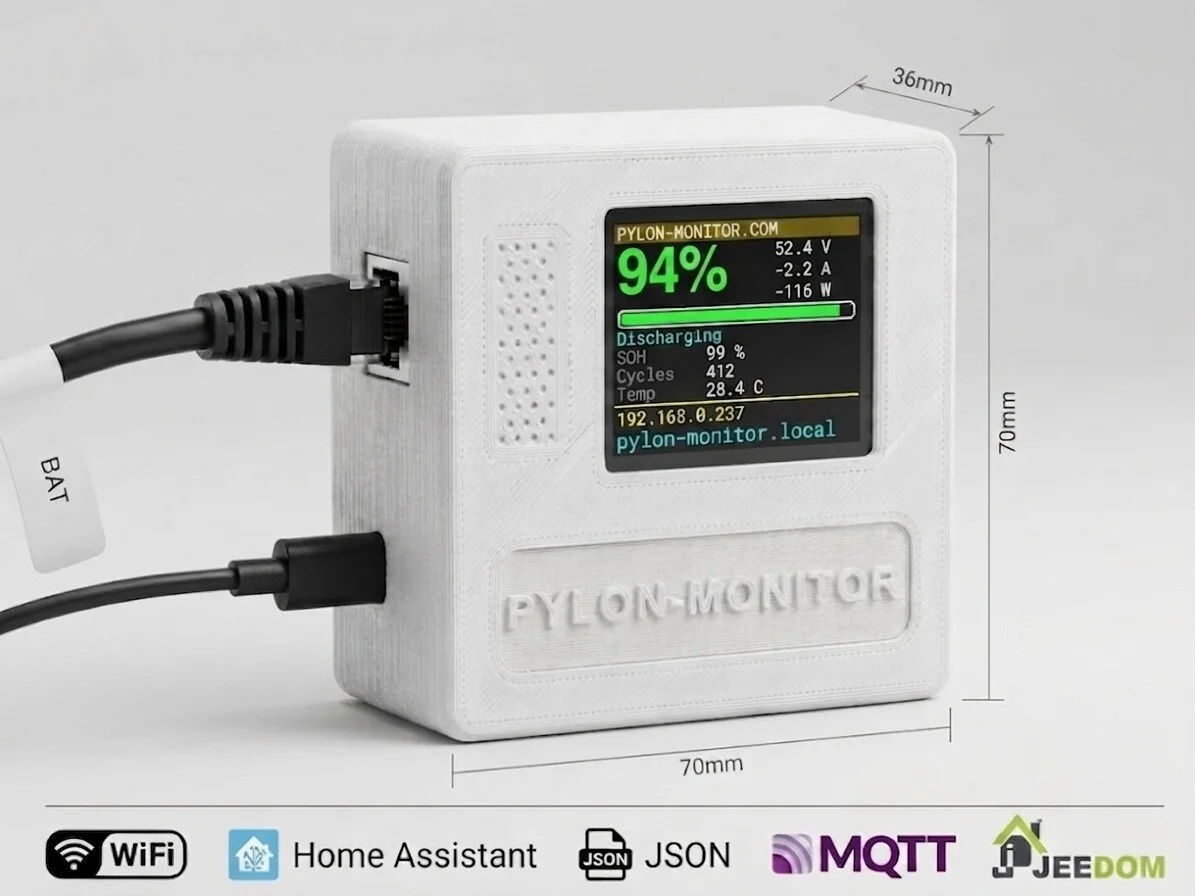
Pylon-Monitor is exactly this: a small device that reads the Console port and puts your Pylontech battery's data on a local dashboard, a JSON API, and Home Assistant — plug & play, under 2 minutes, no cloud.
Order now — €59 One-time purchase, €59 total — no VAT, no subscription.